Sales
Record qualifying product sales, submit receipts for verification, and earn SellPoints in the SellPro app.
Sales gives you another way to earn SellPoints. Record a qualifying product sale and submit the receipt in the SellPro app. Once the receipt is verified, the SellPoints assigned to the Sale will be added to your account.
How to Access Sales
-
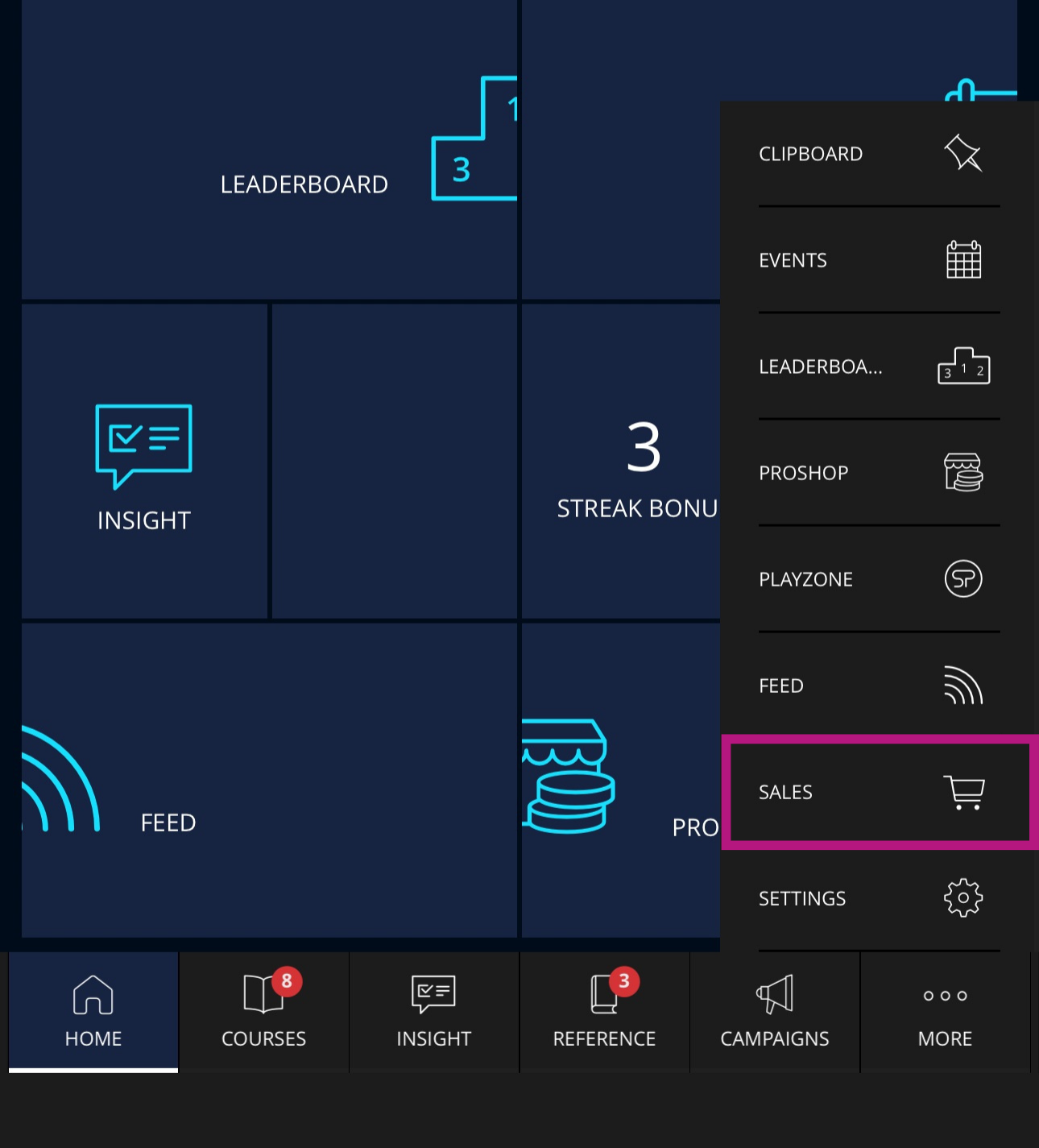
From the Home screen, tap MORE (three dots).
-
Select SALES.
How to Record a Sale
-
Tap RECORD SALE.
-
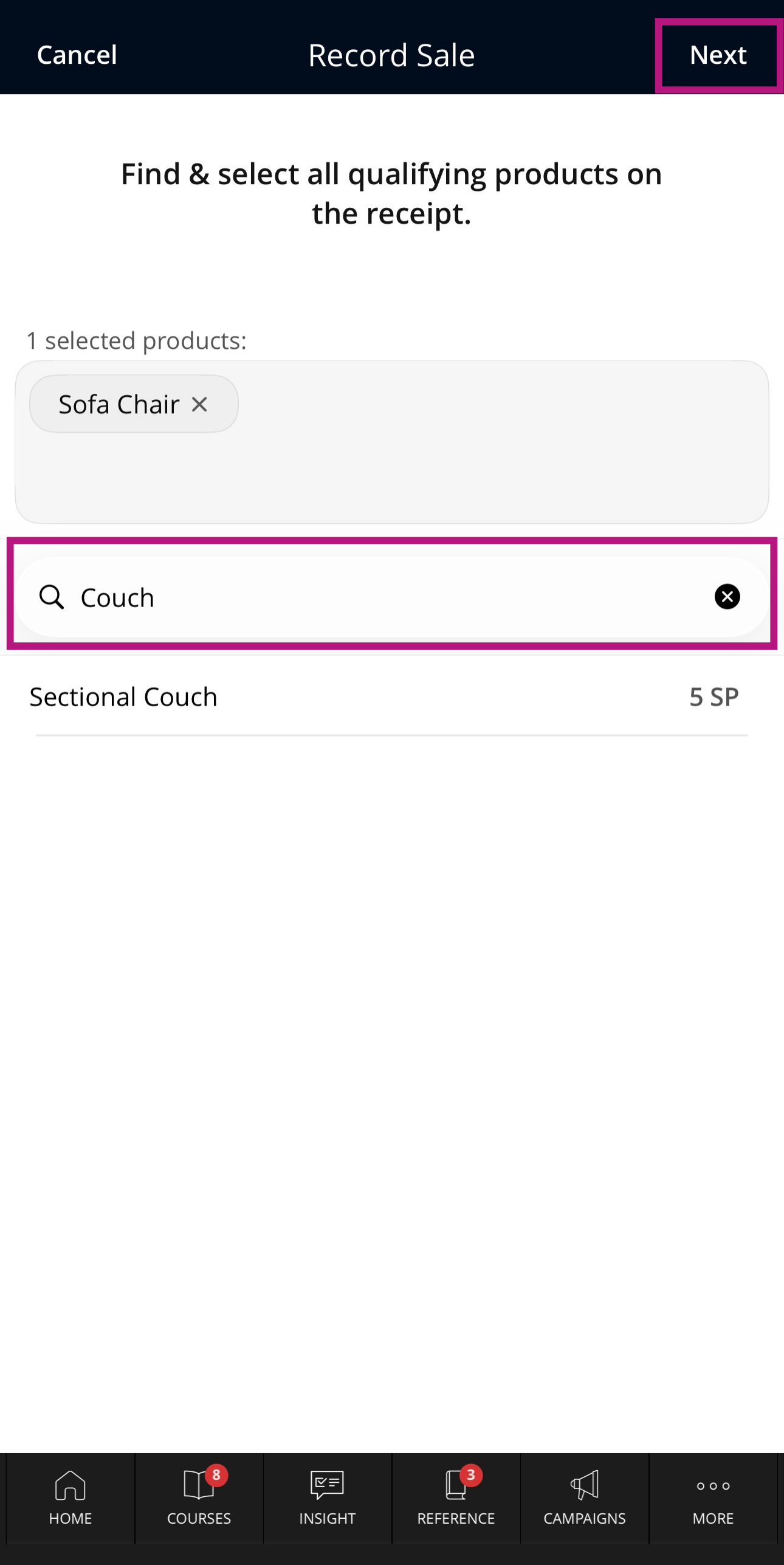
Select qualifying products. Find and select every qualifying product shown on the receipt.
-
Tap NEXT.
Upload the Receipt
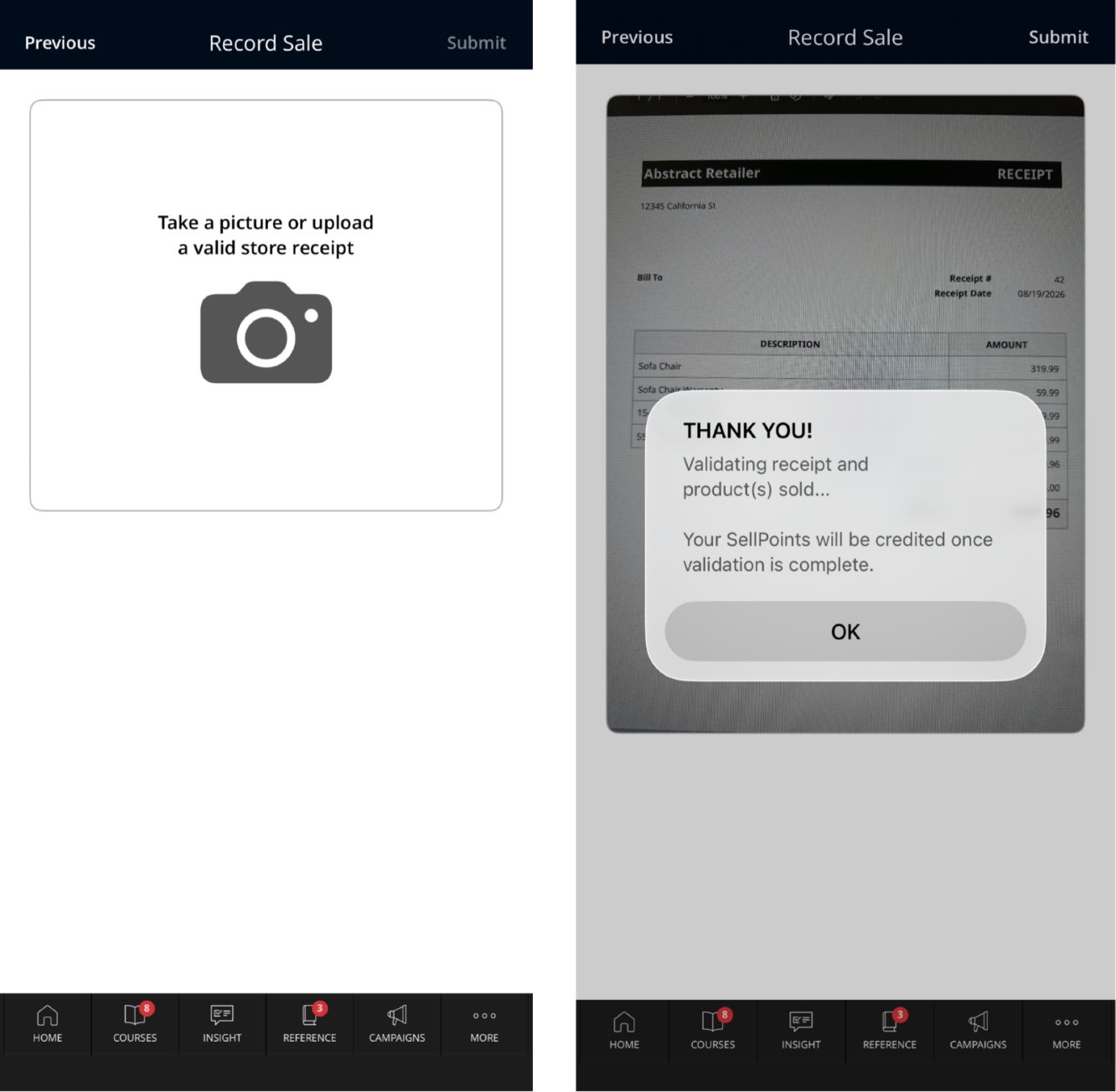
- Take a photo or upload an existing image of the receipt.
- Check that the full receipt is visible and easy to read, then tap SUBMIT.
Receipt Requirements
For the best chance of successful verification, make sure:
- The entire receipt is visible, with no information cropped or cut off.
- The receipt is clear and legible, without blur, glare, or shadows.
- The purchase date is within the last two days.
- The retailer shown on the receipt matches the retailer associated with your SellPro account.
- The qualifying products you selected are listed on the receipt.
What Happens after You Submit
Your Sale will show Validating while the receipt is being checked. Once the receipt is verified, the SellPoints assigned to the Sale will be added to your account.
If You See an Error
An Error means the receipt could not be verified. Upload the receipt again and confirm that the full receipt is visible, the image is clear and legible, the date is within the last two days, and the selected products appear on the receipt.
.png "SellPro Sale Status Validating or Error")
Was this article helpful?